The green dot on a Snapchat profile means that friend has been active on Snapchat recently. Snapchat calls this feature the Activity Indicator. The dot appears on the friend’s avatar, which is the Bitmoji or profile picture next to their name, and it stays visible unless that friend turns the setting off.
Think of it as a porch light that someone switched on earlier in the day. It tells you someone was around, but it does not tell you whether they are still standing at the door.

Does the Green Dot Mean Someone is Online Right Now?
No. The green dot shows recent activity, and Snapchat does not say how recent. A friend can open the app, close it, and still show a dot when you look a few minutes later. Treat the dot as a hint that a reply may come soon, not as a guarantee.
Some third party guides claim the dot lasts up to 24 hours. Snapchat has not confirmed that number, so avoid treating it as fact.
If you need to know whether someone is available, sending a message and waiting is more reliable than reading the dot.
Why Some Friends Never Show a Green Dot?
A missing green dot usually has one of three causes: the friend has not been active recently, the friend turned off their Activity Indicator, or you and that person are not connected as friends on Snapchat. Snapchat says the dot shows up unless the friend disables it.
Here is how to tell the causes apart:
- If a friend never shows a dot, even when they reply to you quickly, they have most likely switched the setting off.
- If a friend shows a dot sometimes and not other times, the dot is following their recent activity.
- If you turned off your own Activity Indicator, you may stop seeing dots for others as well, so check your own setting first.
Snapchat’s help page does not say whether the setting works both ways, so test it on your own account before assuming either answer.
What the Green Dot Does Not Tell You
The green dot tells you one thing: the account was active recently. Snapchat’s explanation does not describe what the person did while in the app. That leaves a lot of room for wrong guesses, so here are the most common ones.
- The dot does not mean the person is looking at your profile or your Story.
- The dot does not mean the person is typing a message to you.
- The dot does not mean the person is ignoring you if they have not replied.
- The dot does not show where the person is. Location sharing on Snap Map is a separate feature.
How to Turn Off the Green Dot on Snapchat
To hide your green dot, switch off the Activity Indicator in your privacy settings. The change takes four taps, and you can turn the setting back on at any time.
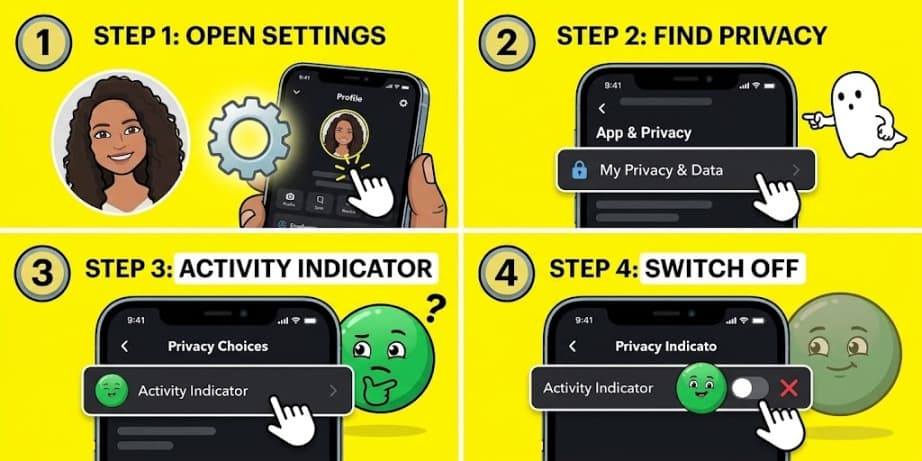
- Tap the gear icon on your Profile screen to open Settings.
- Scroll to the App & Privacy section and tap My Privacy & Data.
- Scroll to Privacy Choices and tap Activity Indicator.
- Switch the toggle off.
The setting is one toggle for your whole account. The steps above offer no way to hide the dot from only some friends.
Ghost Mode does not hide the green dot. Ghost Mode controls whether your location shows on Snap Map, and the Activity Indicator is a different switch. If you want both kinds of privacy, change both settings.
Green Dot vs Other Snapchat Status Signals
Snapchat shows several status signals, and each one answers a different question. The table below separates them so you do not read one signal as another.
| Signal | What it shows | Setting that controls it |
|---|---|---|
| Green dot | The friend was active on Snapchat recently | Activity Indicator in My Privacy & Data |
| Snap Map location | Where a friend is, if they share it | Ghost Mode on Snap Map |
| Opened or Sent status | What happened to one specific Snap or message | Not controlled by the Activity Indicator |
Conclusion
The green dot answers a narrow question: has this friend used Snapchat lately?
It does not say who is reading your Story, who is typing, or who is choosing not to reply.
If the dot makes you feel watched, switch off the Activity Indicator in My Privacy & Data and check Ghost Mode separately for your location.